
Remote desktops,
the Mac way.
Sheltie is a native macOS app for your Windows machines. Saved connections, multi-monitor setups, Keychain sign-in and one-click reconnect, with the FreeRDP engine built in.
Free during the beta · Apple silicon (M1 or later) · macOS 26 or newer
Connection library
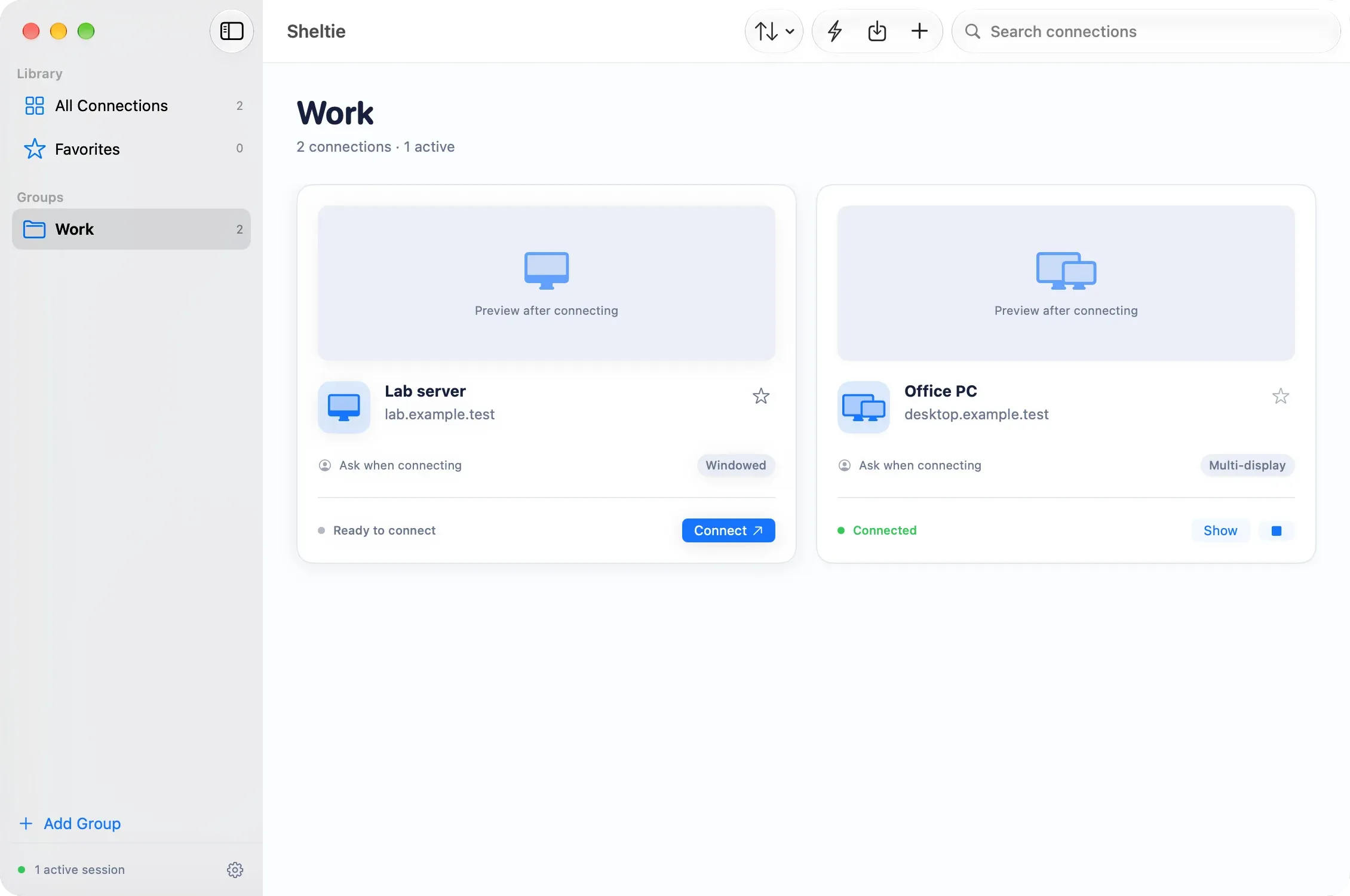
Groups, favorites and instant search.
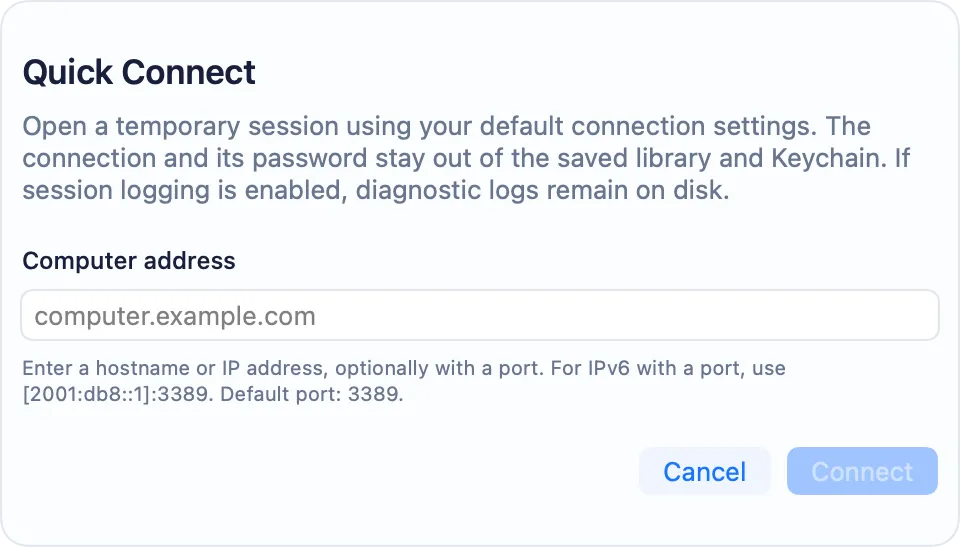
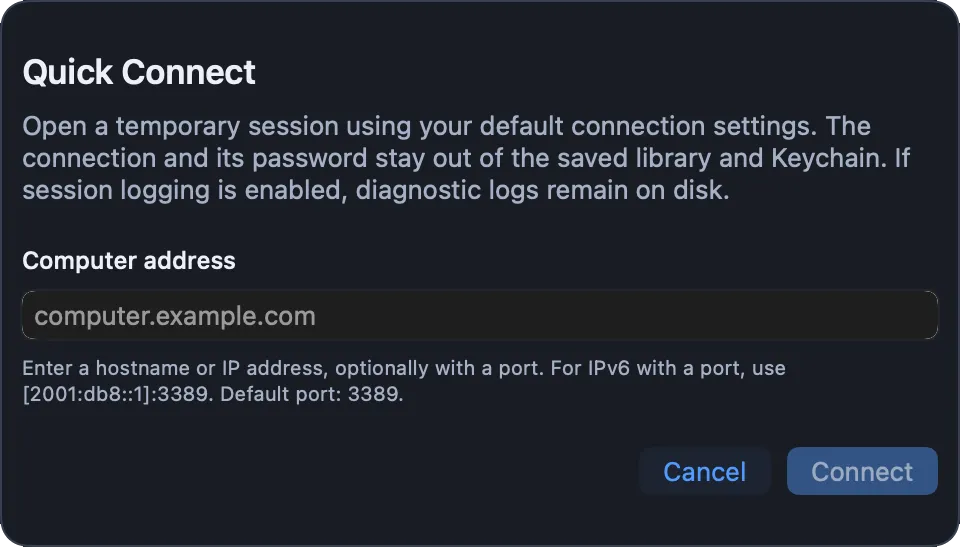
Quick Connect
Type an address and go. Nothing is saved.
.rdp import
Bring existing Windows connection files.
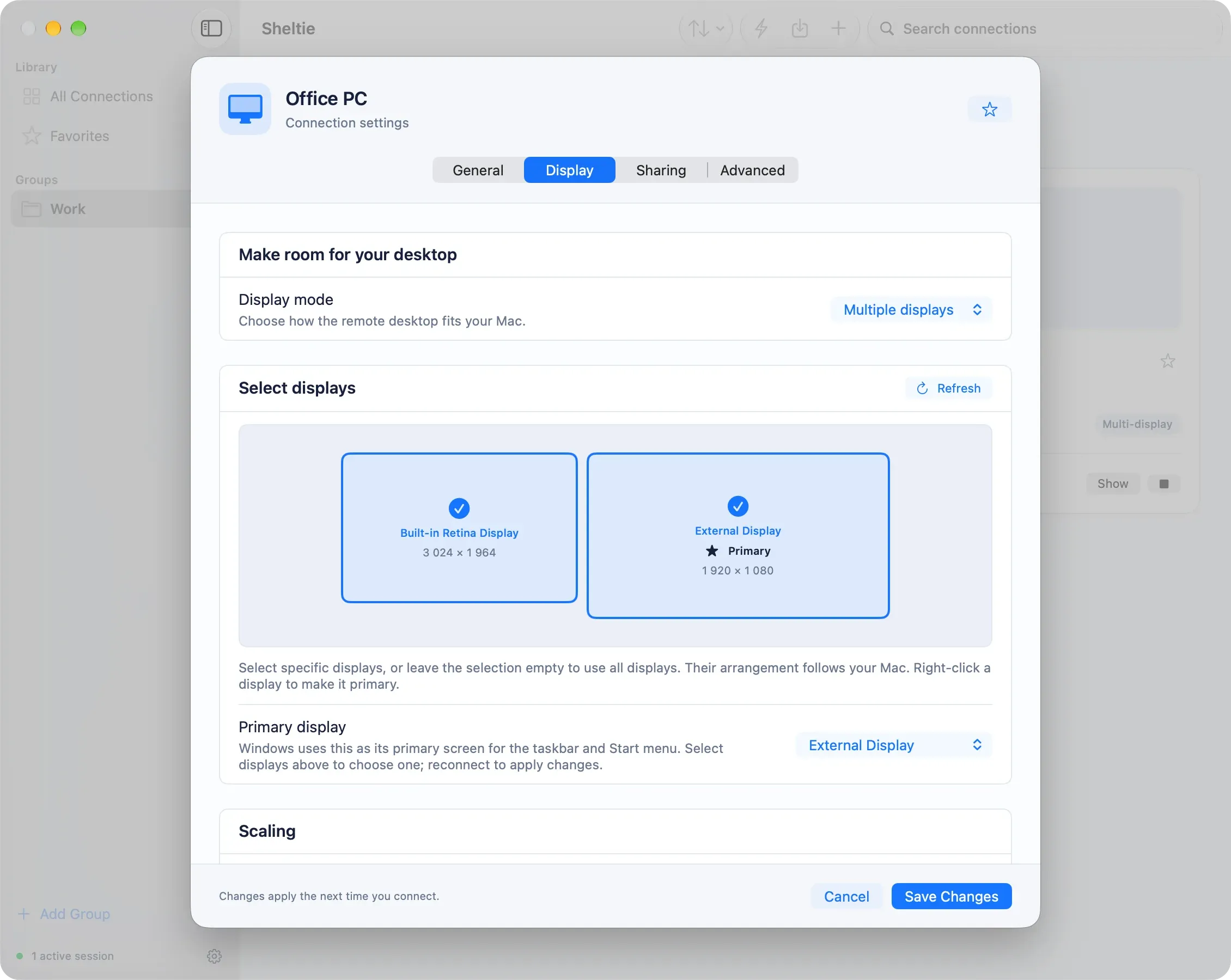
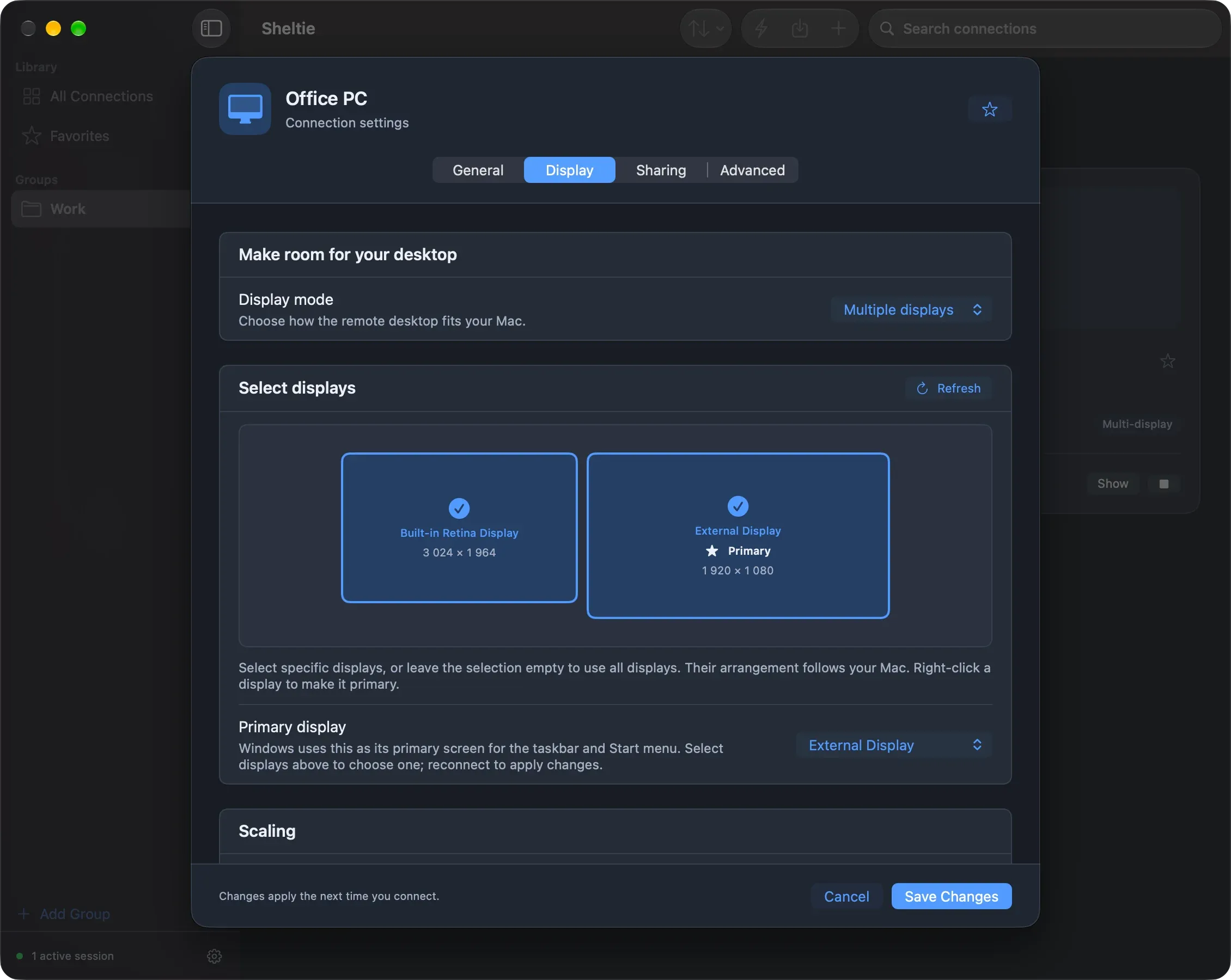
Multi-monitor
Pick screens and choose the primary.
Keychain sign-in
Native prompts; no passwords in files.
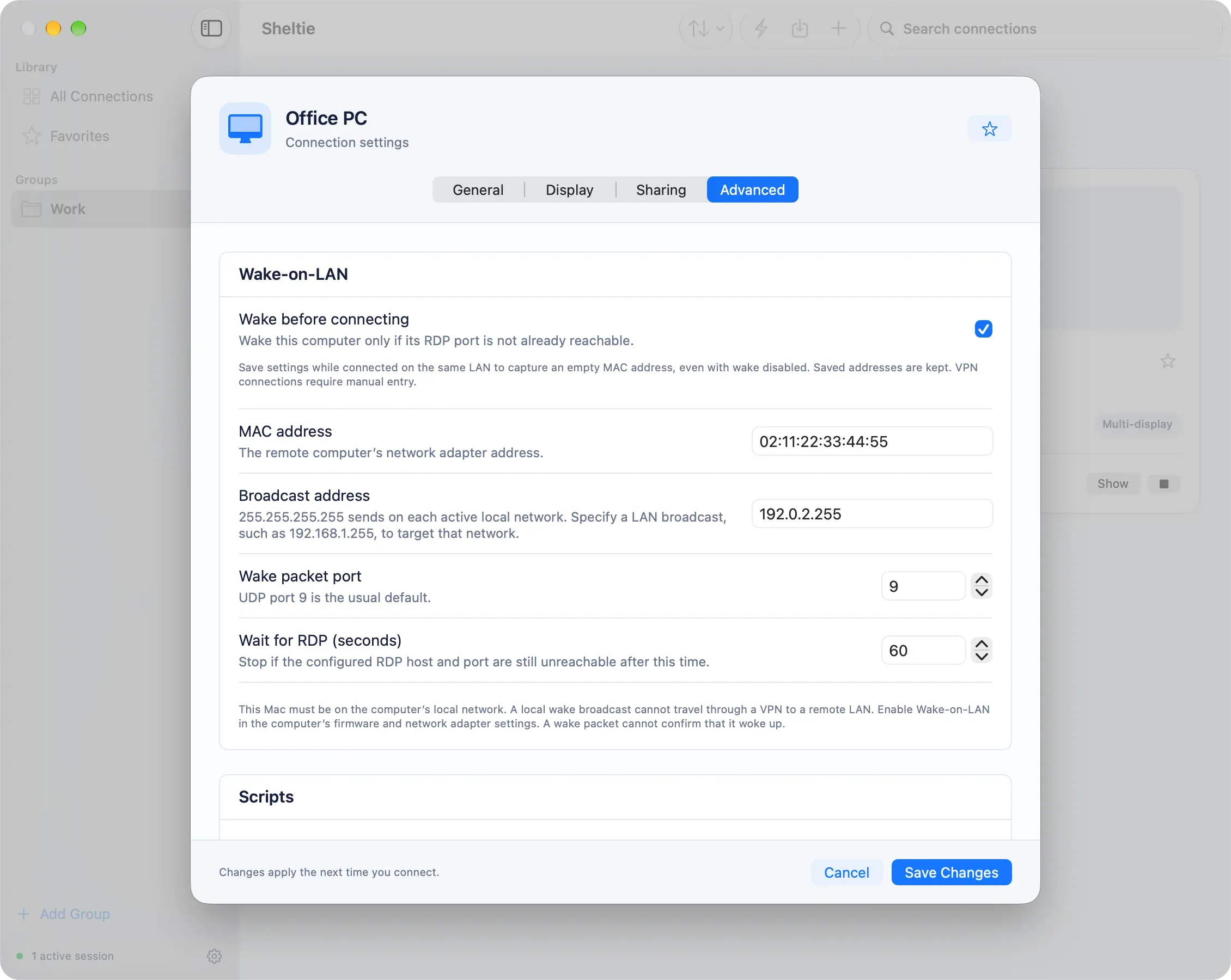
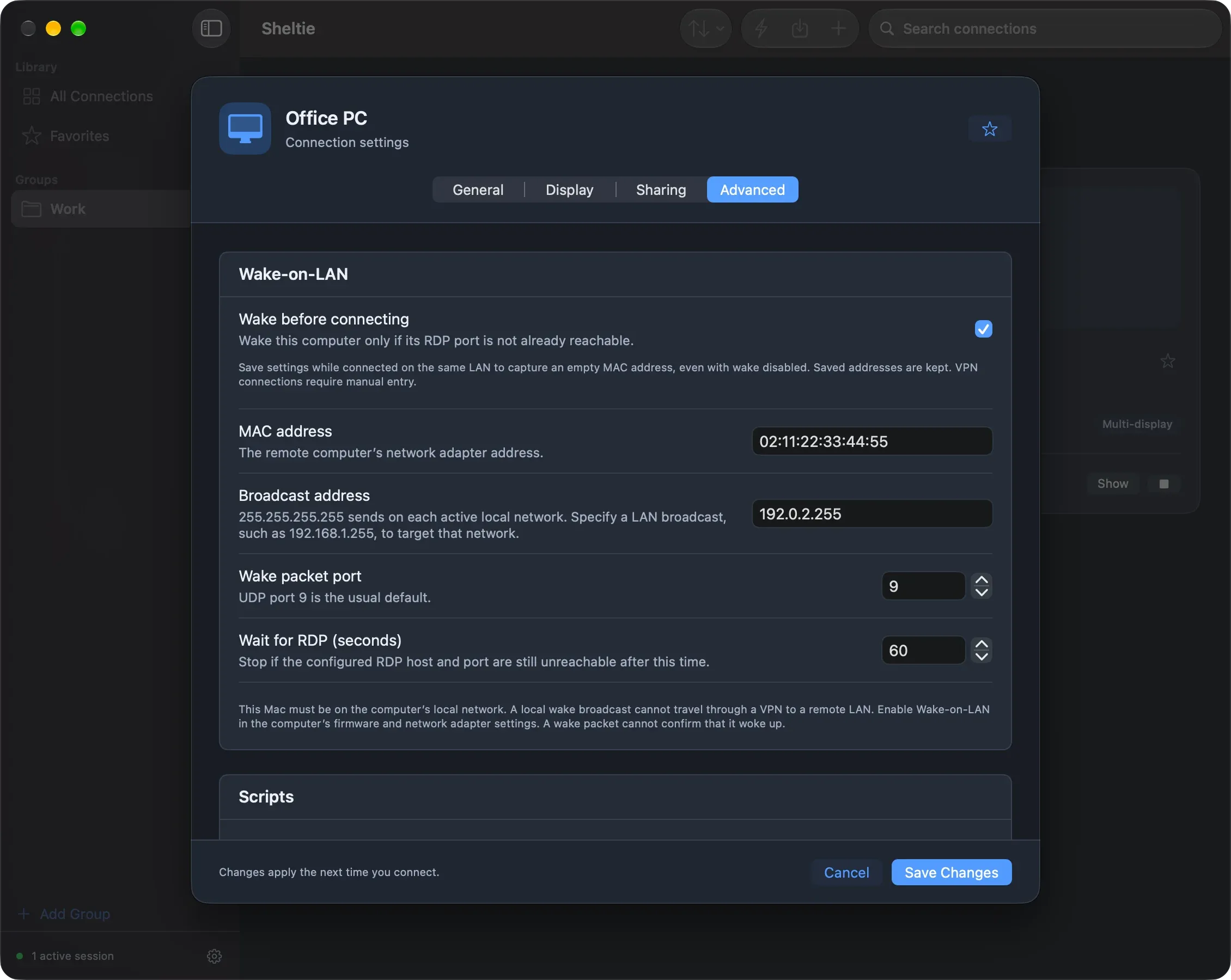
Wake-on-LAN
Wake the PC, then connect when it is ready.
Your library
Every computer, one tidy window.
Organize connections into groups, star your favorites and find any host by name. Each card shows its live status with Connect, Show and Disconnect right there. Several sessions can run at once, and connecting to one that is already open simply brings it forward.
- A default template for new connections
- Import
.rdpfiles with notes on anything skipped - Optional live thumbnails with no Screen Recording permission
Quick Connect
Press ⌘K, type an address, connect.
For one-off sessions, Quick Connect uses your default settings and keeps both the connection and its password out of your library and Keychain. Hostnames, IPv4 and IPv6 all work, with an optional port. When you are done, it asks if you want to save the connection.
Displays
Your monitors, arranged like your Mac.
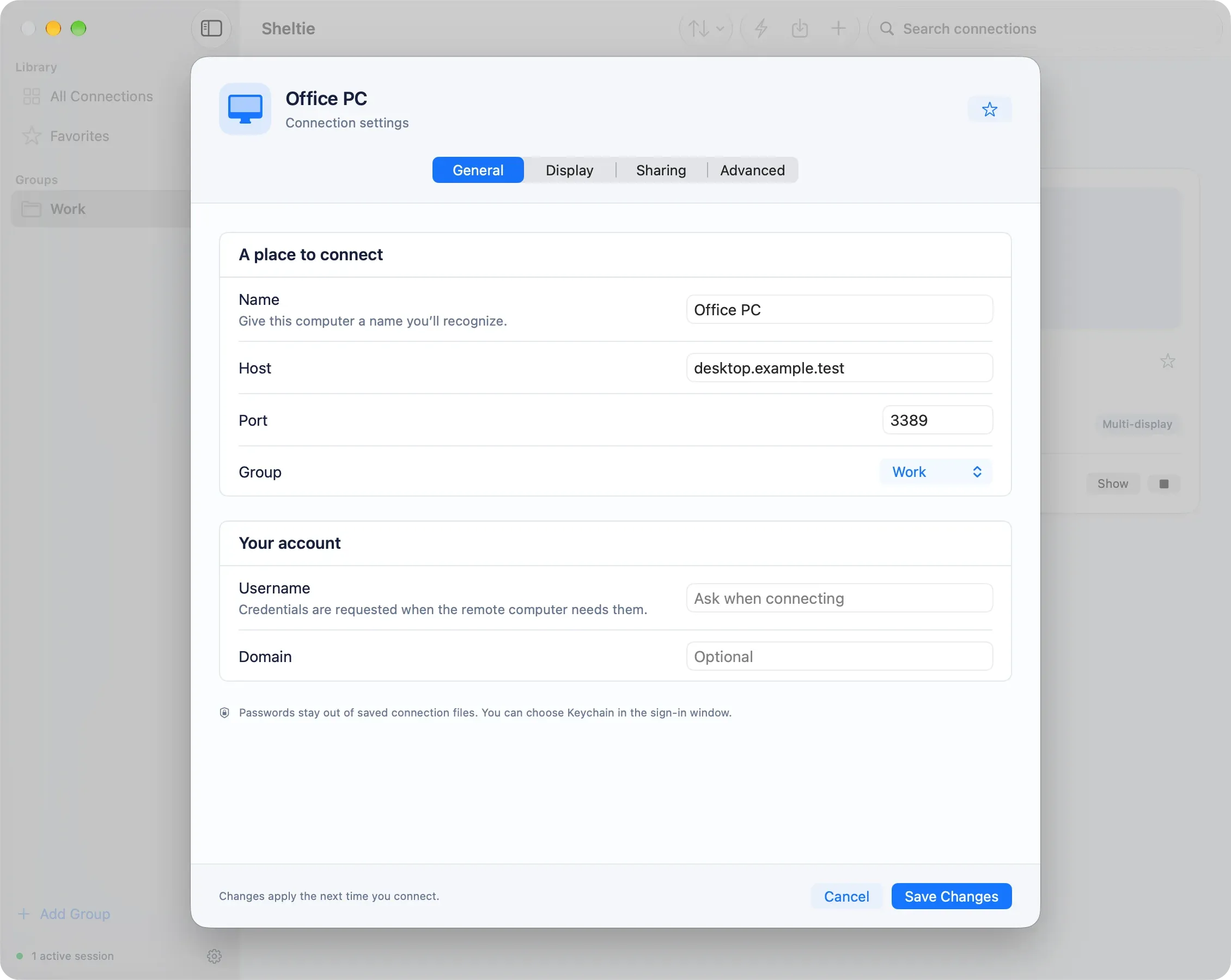
Run a session in a window, fullscreen, or across several displays. Choose screens on a visual picker, mark the one Windows should use for its taskbar, and let the desktop resize with the window.
Automatic scaling matches each Mac display (typically 200% on Retina), and you can set scaling per display when a Retina screen sits next to an ordinary external monitor.
Sign-in and security
Native prompts. Passwords stay in Keychain.
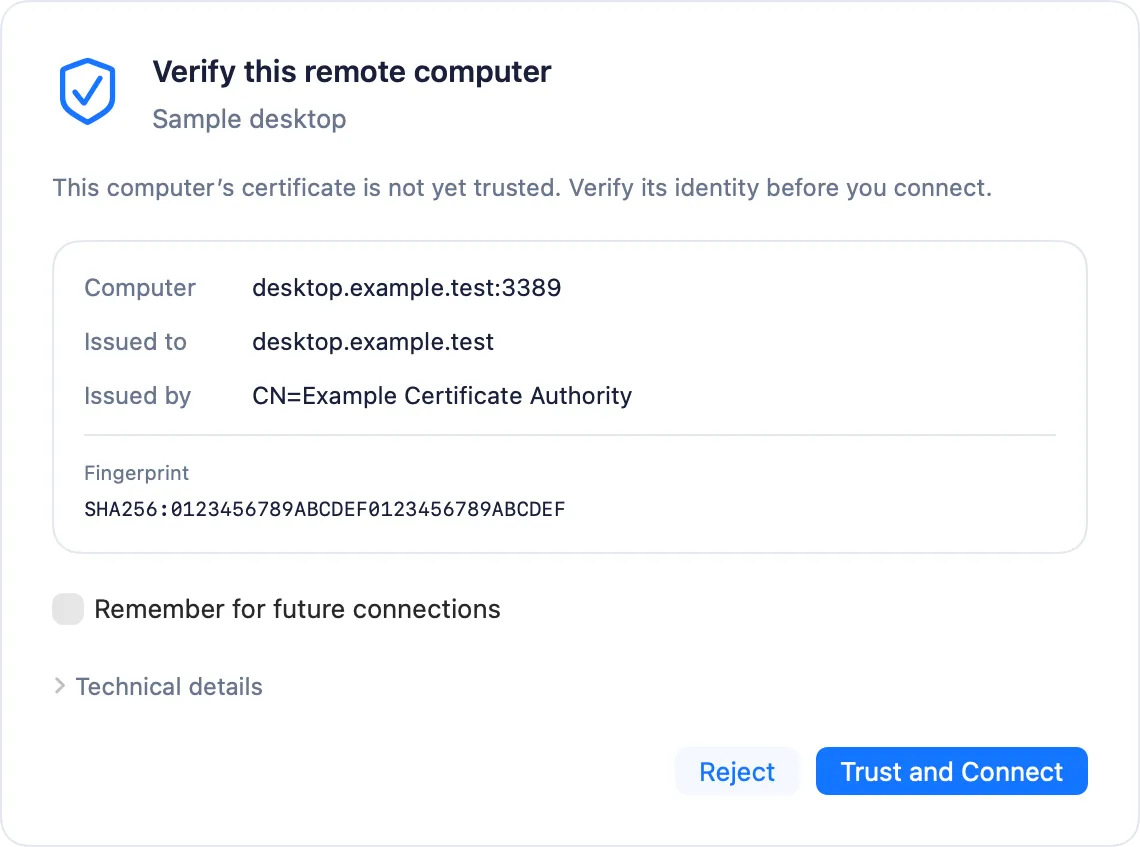
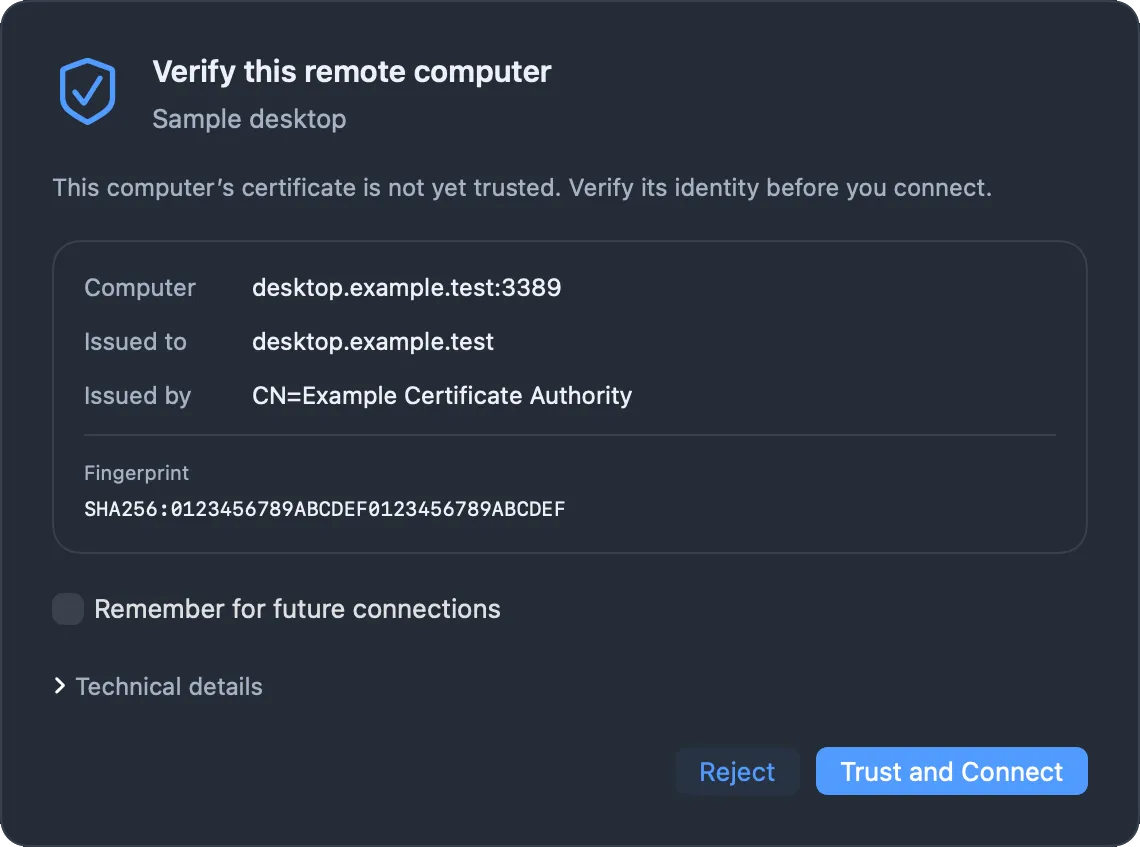
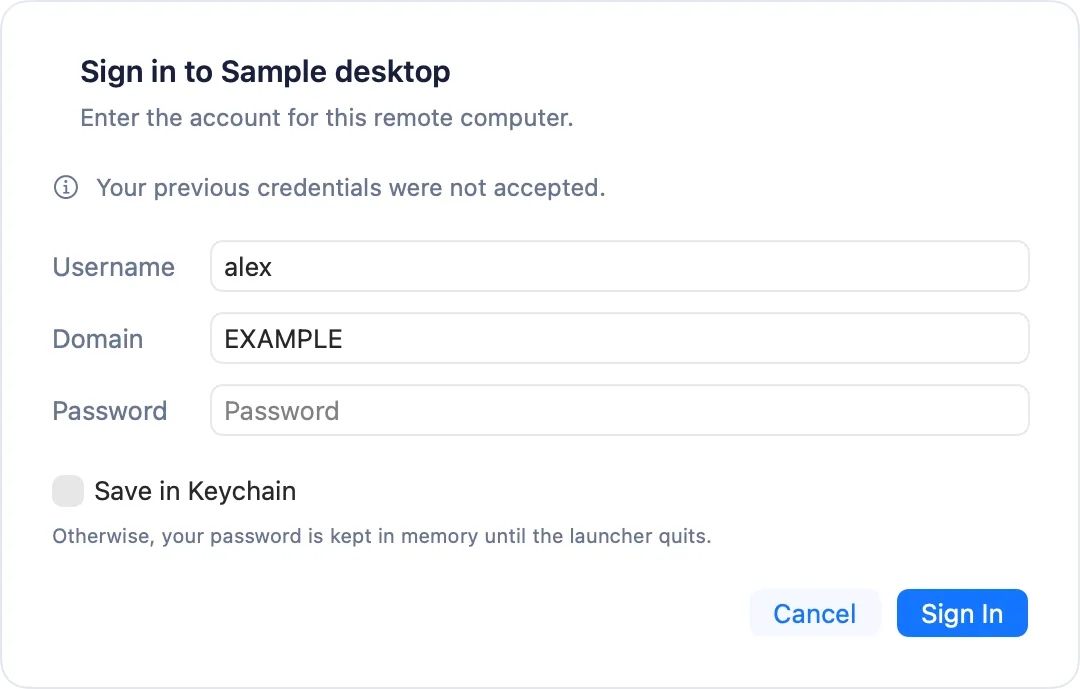
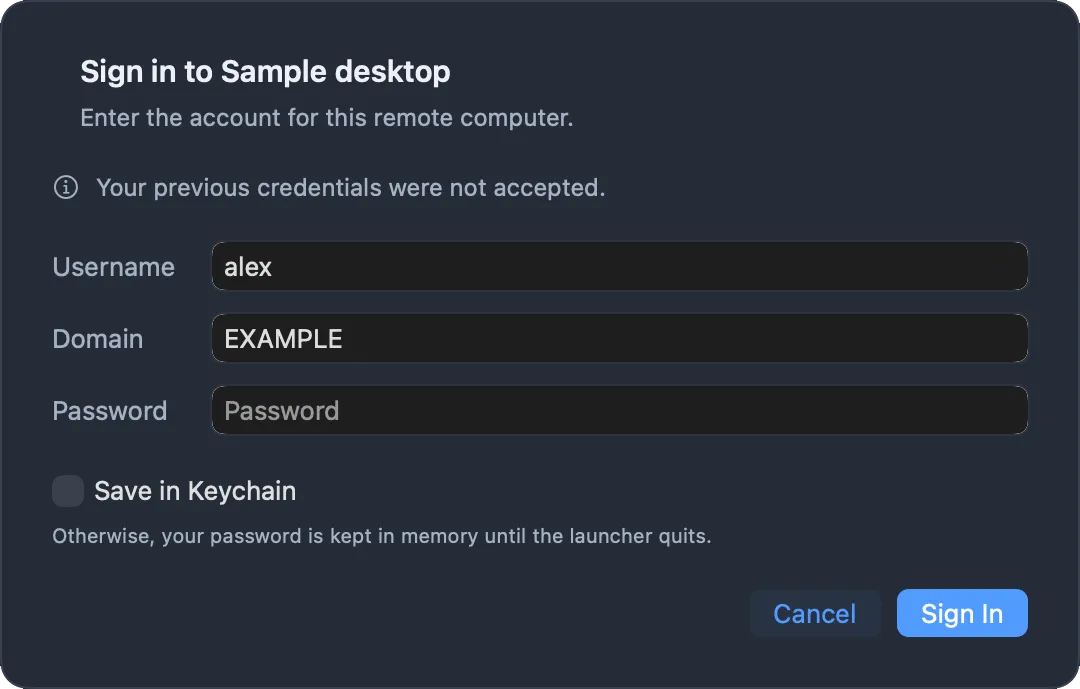
Sign-in and certificate checks appear as proper macOS dialogs instead of terminal prompts. Choose Save in Keychain and credentials are stored only after a successful connection.
Passwords are never written to the connection file or passed on the command line. Certificates show their issuer and fingerprint, and you can remember a trusted one.
Reliability
Dropped connection? One click back.
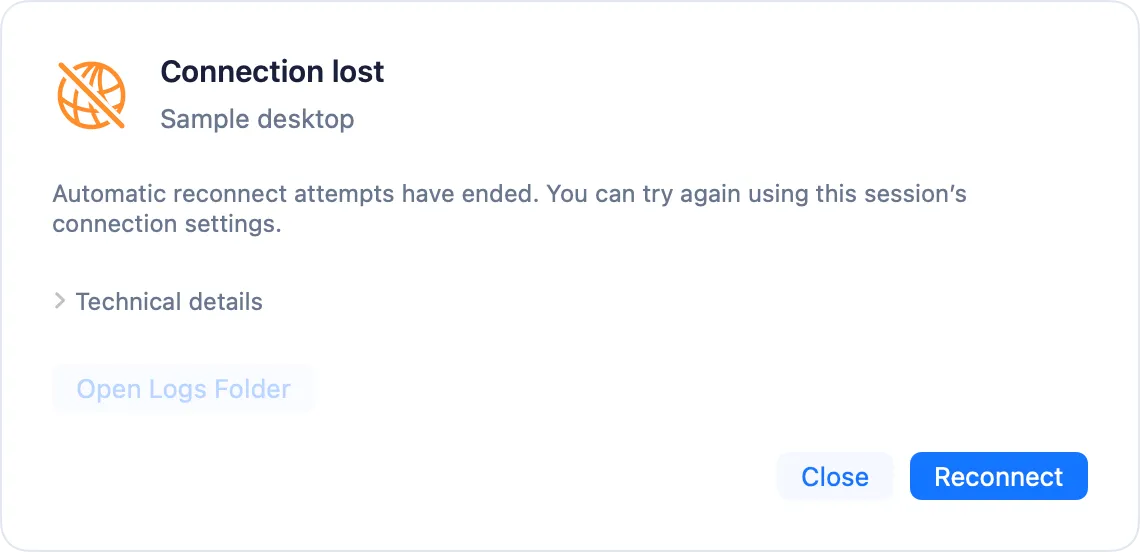
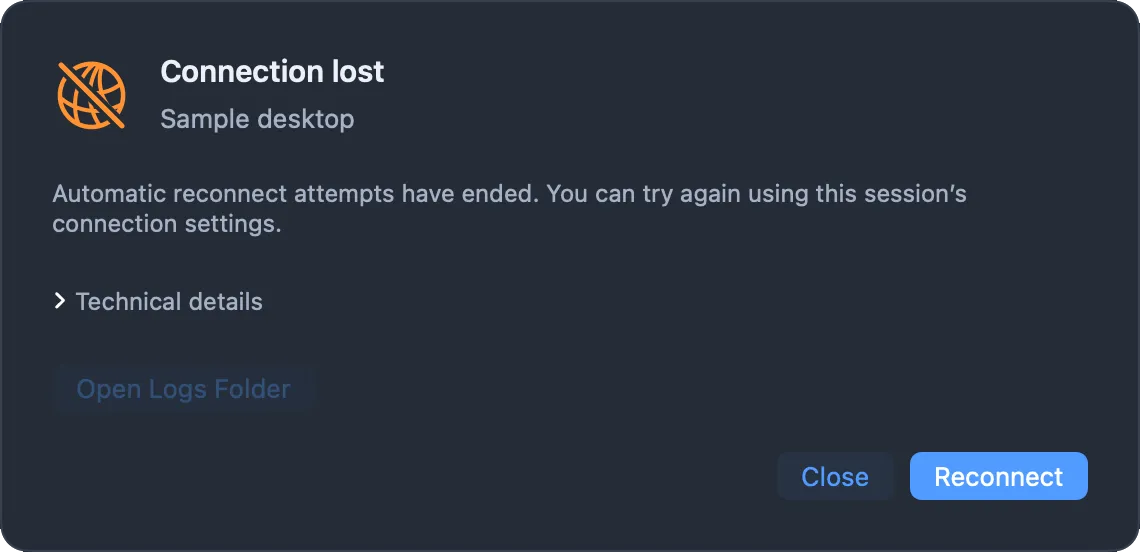
Temporary network hiccups trigger automatic reconnect, with retries and timeouts you control. If the attempts run out, a clear Connection lost window offers Reconnect with the same settings, plus technical details and optional session logs.
Performance statistics
See what your connection is doing.
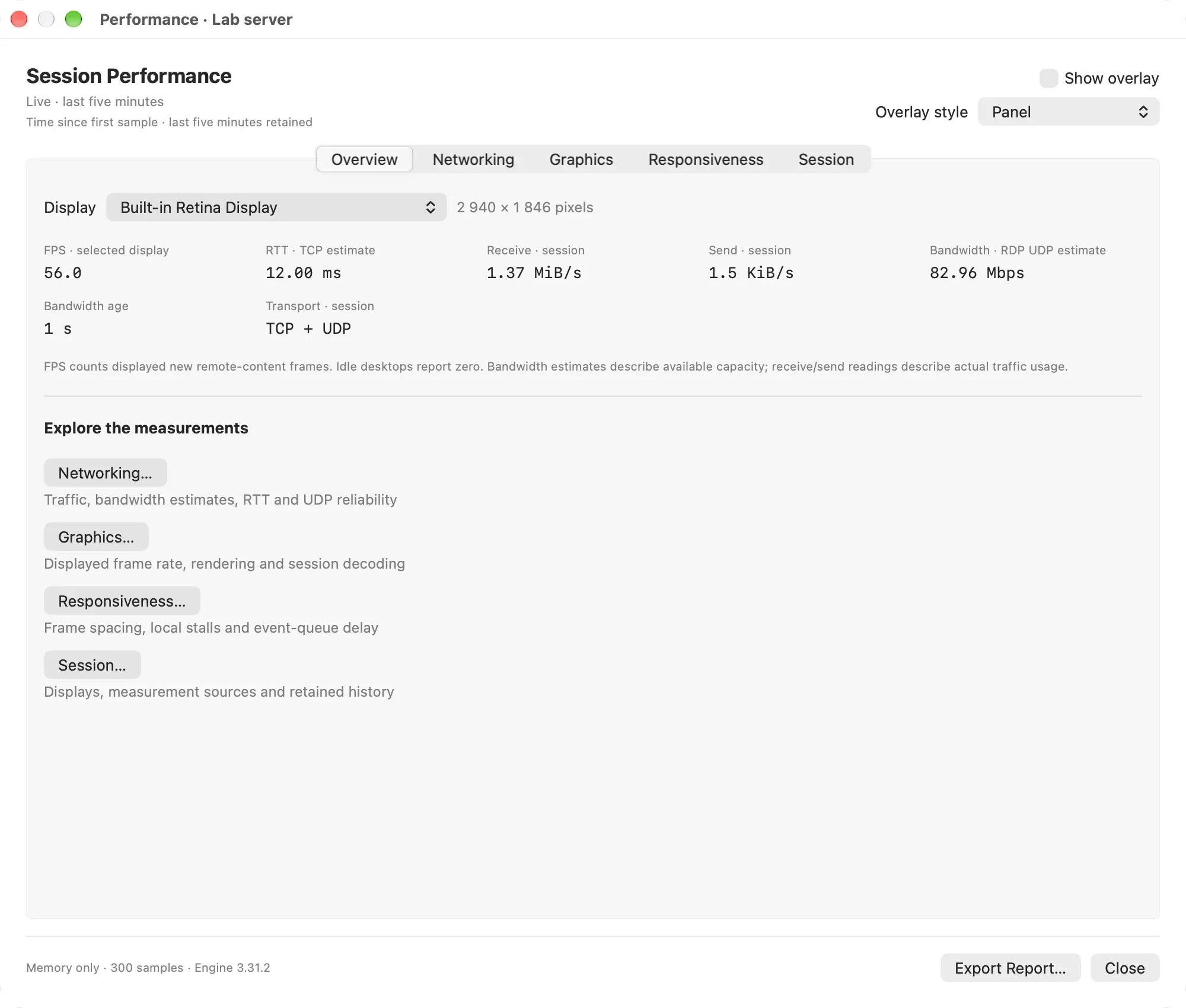
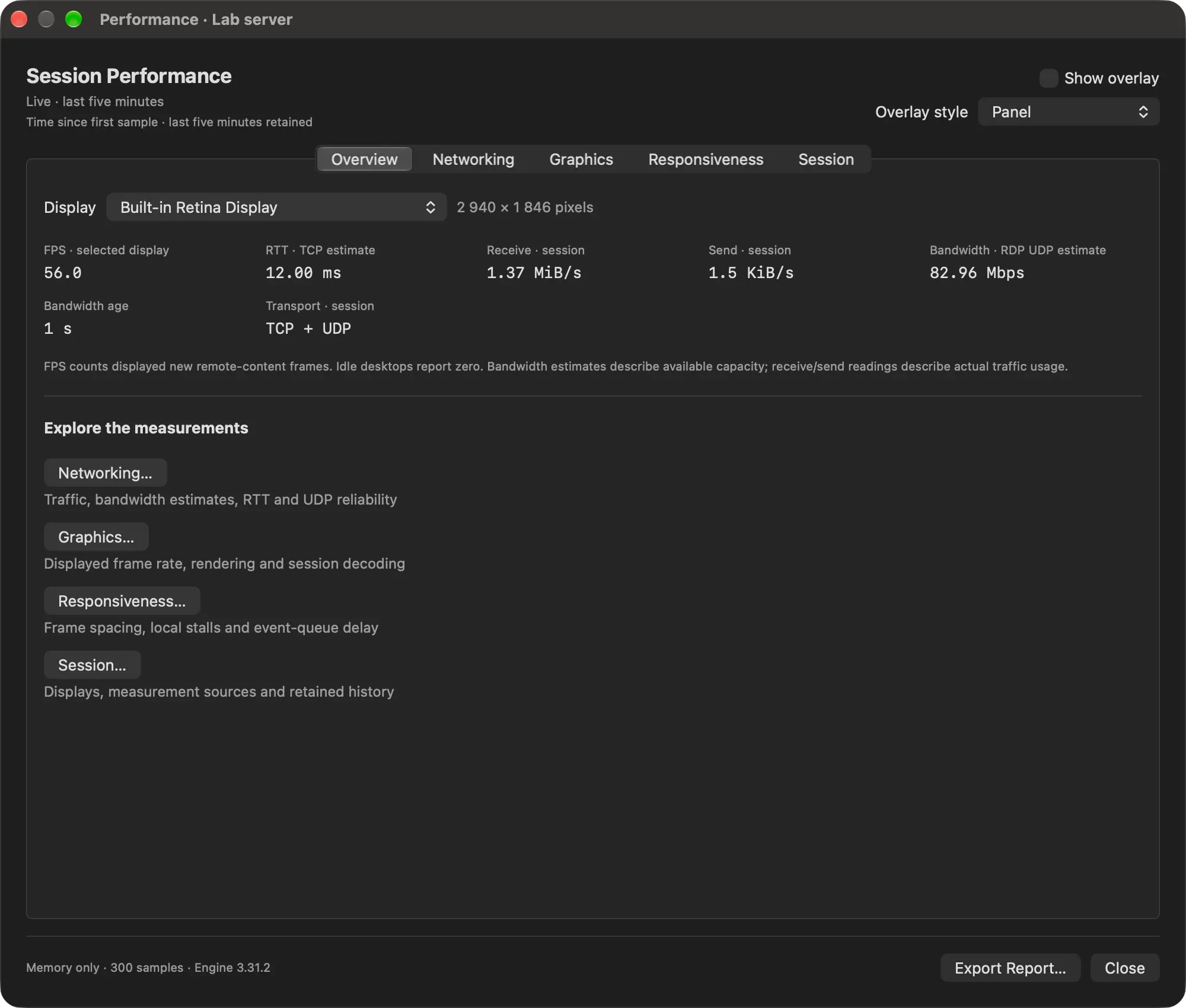
When a session feels slow, turn on live statistics. Frame rate, round-trip time and traffic appear in a small overlay on the remote desktop, or in a window with charts for networking, graphics and responsiveness.
The last five minutes stay in memory, and Export Report… saves them when you want to share what happened.
Wake-on-LAN
Wake the PC. Connect when it is ready.
Turn on Wake before connecting for any saved connection. Sheltie sends a magic packet, waits for the remote desktop port to open, then starts the session. It can even fill in the MAC address from a live session on the same network.
Built for the Mac
Made in SwiftUI, and it feels like it.
VoiceOver ready
Native controls with named actions on every connection card.
Keyboard first
Menu-bar shortcuts for connecting, editing, groups and search.
Dock integration
Group sessions under the Sheltie icon, or give each its own ⌘Tab entry.
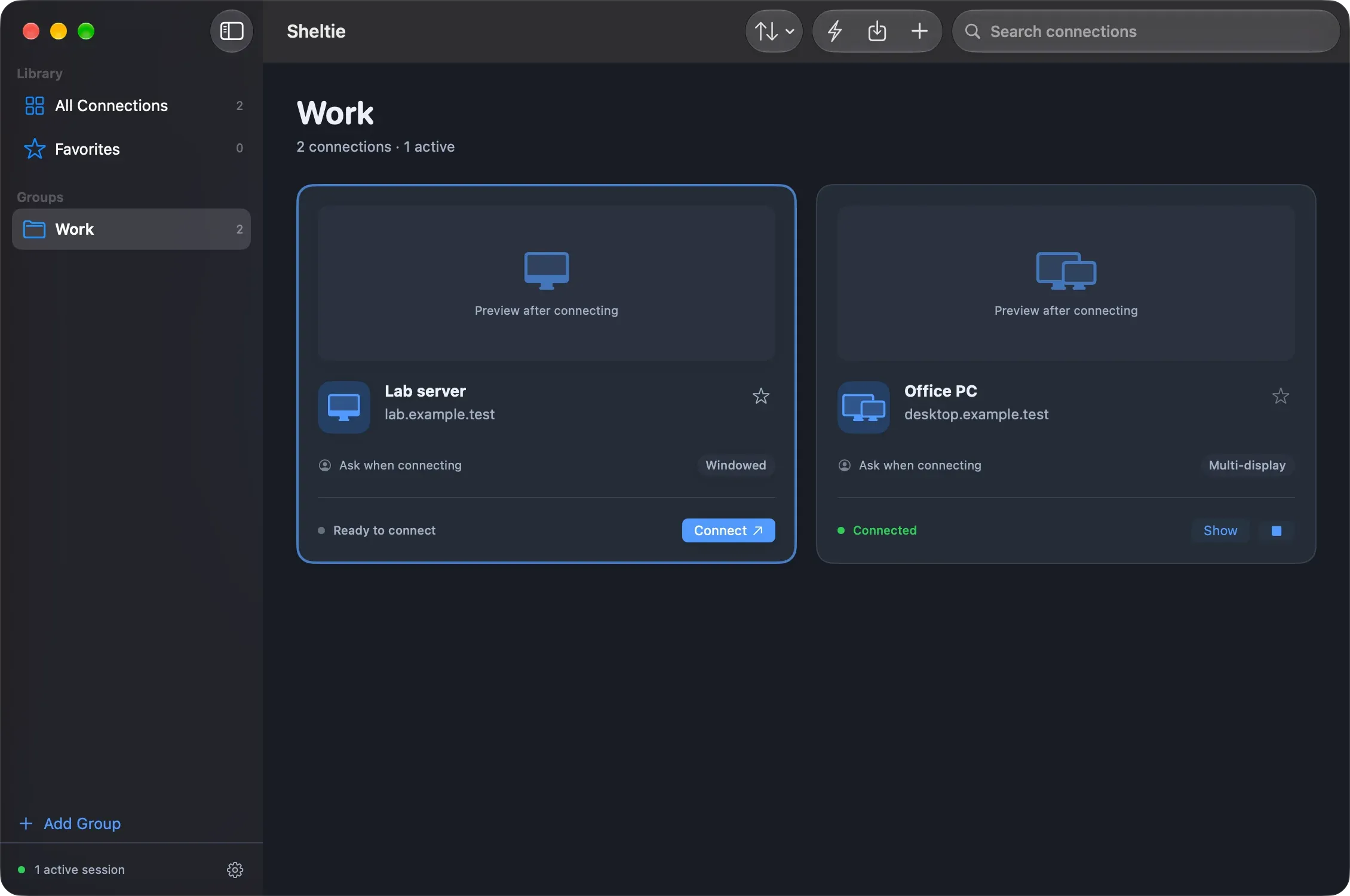
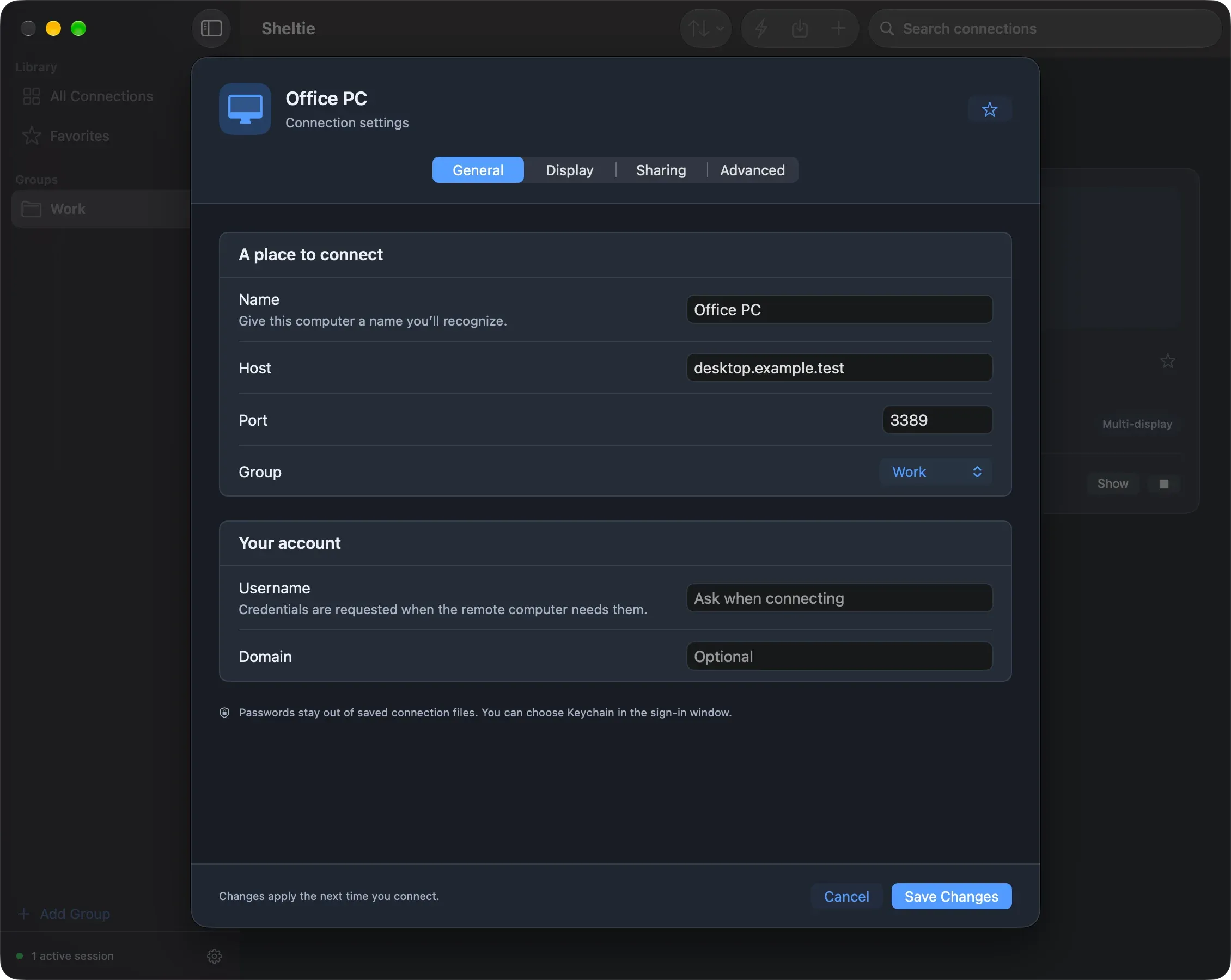
Light and dark
Follows your system appearance across the manager and every dialog.
- ⌘KQuick Connect
- ⌘NNew connection
- ⌘EEdit connection
- ⌘↩Connect or show
- ⌘FFind
- ⇧⌘IImport .rdp
Ready to connect?
Free during the beta. One DMG with everything bundled: drag it to Applications and add your first computer.